
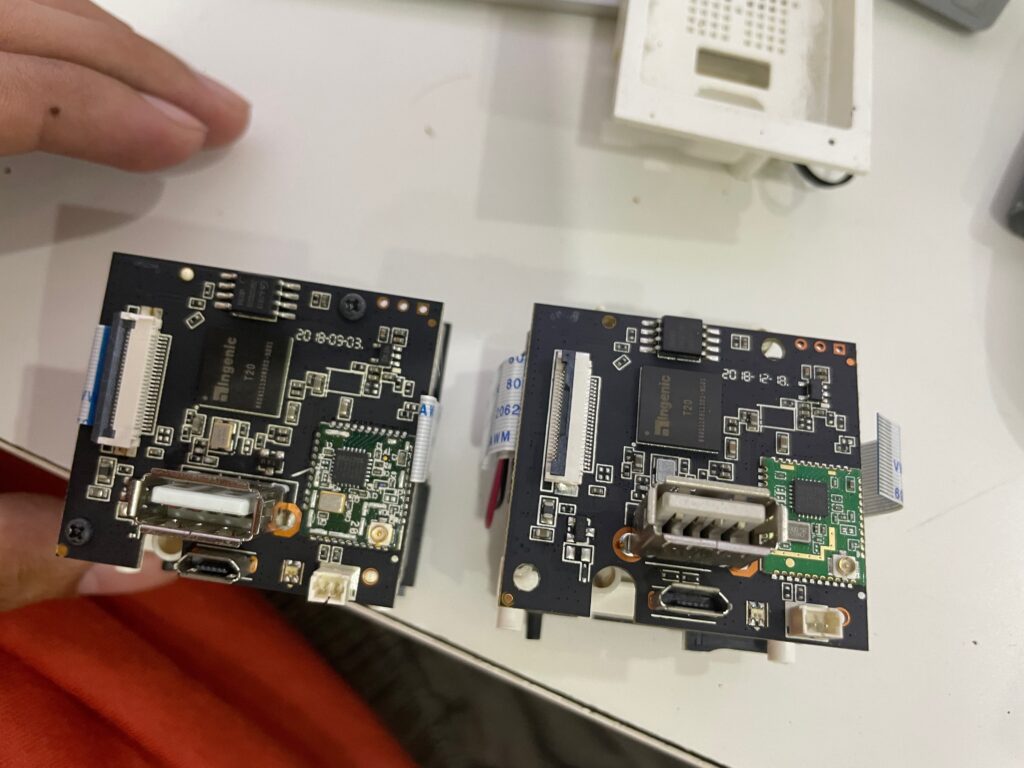
For the past couple of days I’ve been experimenting with Wyze Cam v2 and Xiaomi Xiaofang 1s. It’s an identical product that has Ingenic T20 as SoC.
It’s a camera we used 3-4 years ago but stopped using because of general unreliability (microSD regularly burning out, occasional disconnection).
I really did not have any goal other than leisurely tinker around. It has a couple of custom firmware/firmware modification projects actively being developed I want to try first hand.
Hunch: WiFi is the cause of unreliability
I think the primary issue I had when I was using this was consistent disconnection that required a power cycle. Unreliability for a device that’s meant as a “security” camera made it undesirable.
My hunch is it’s because of the WiFi connection. It has a RTL8189 WiFi chip that’s using 2.4 Ghz only, which likely already noisy. Video data stream is high-bandwidth already running 24/7.
I had the idea of trying not using WiFi altogether.
There are a couple of ways to do it:
As a Webcam
Wyze has a webcam-only firmware which surprisingly works on both Wyze Cam v2 and Xiaomi Xiaofang 1S.
It shows up as a USB Video Class (Webcam), Mic, and Speaker.
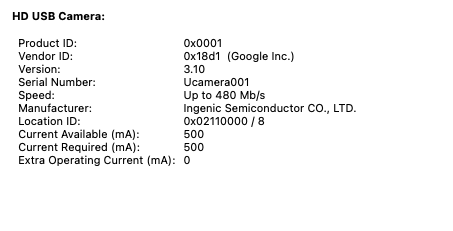
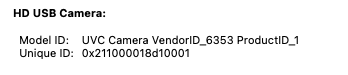
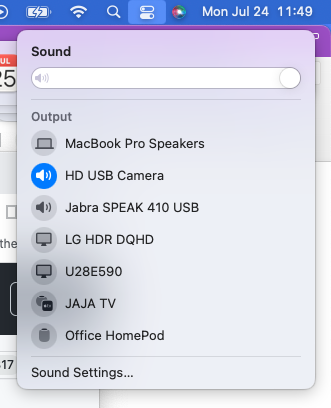
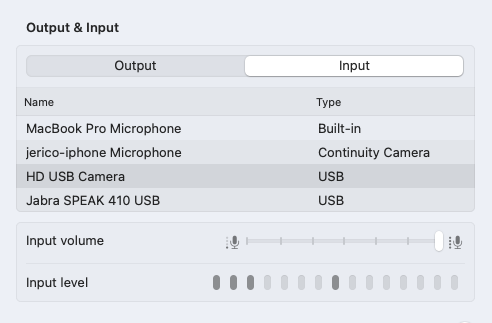
The speaker does not sound good, but it works.
Doing it this way would require a PC to host the webcams, make the video stream available in the network via RTSP. Possibly using v4l2rtspserver or go2rtc.
Benefit is it removes the network and data processing off the camera, but it will be limited by USB cable length.
Problem: USB cable length
RJ45 extension does not work
I checked if there’s a USB to RJ45 to USB. RJ45 is very easy to extend and terminate. And there is:
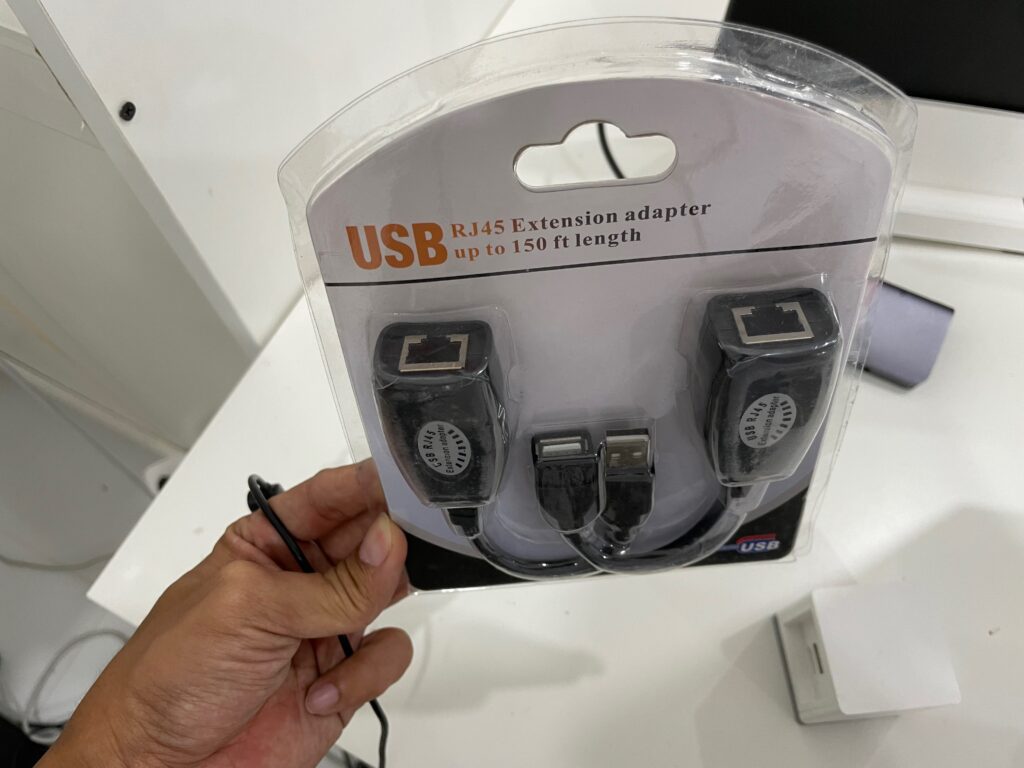
Link: https://s.lazada.com.ph/s.7ZW19
Price: Php 138.00
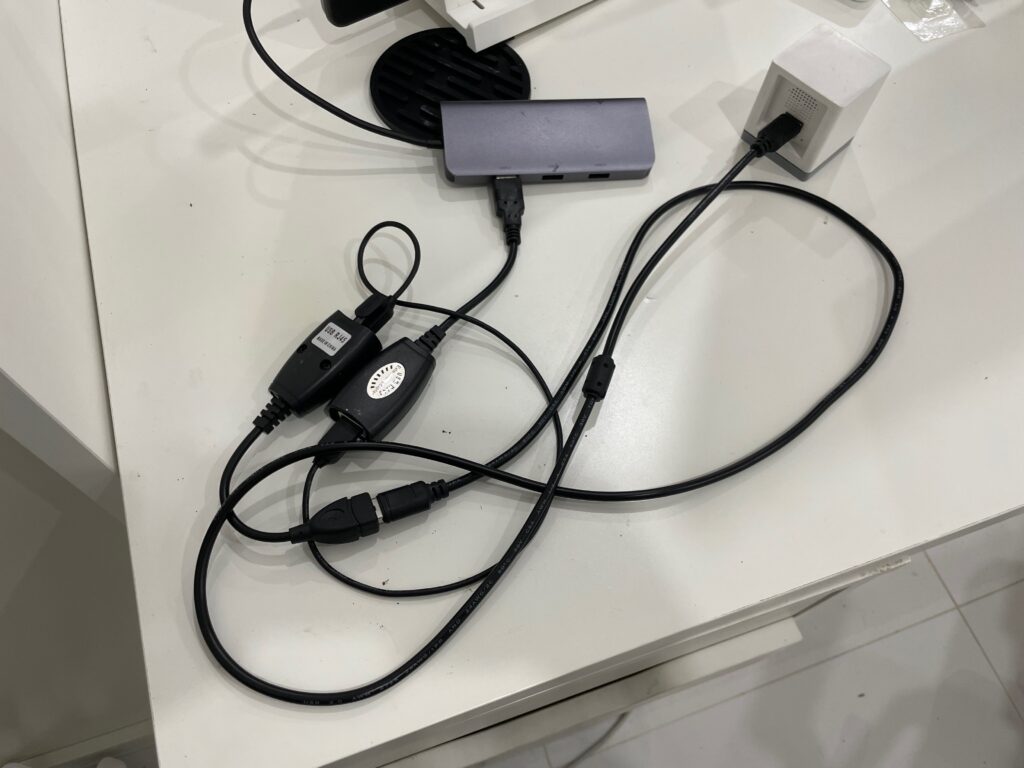
Even with 0.5m CAT6a cable, the video signal does not work. The device shows up in the device list but the video is just black. I think it has to do with data integrity not being retained after passing through CAT6 cable.
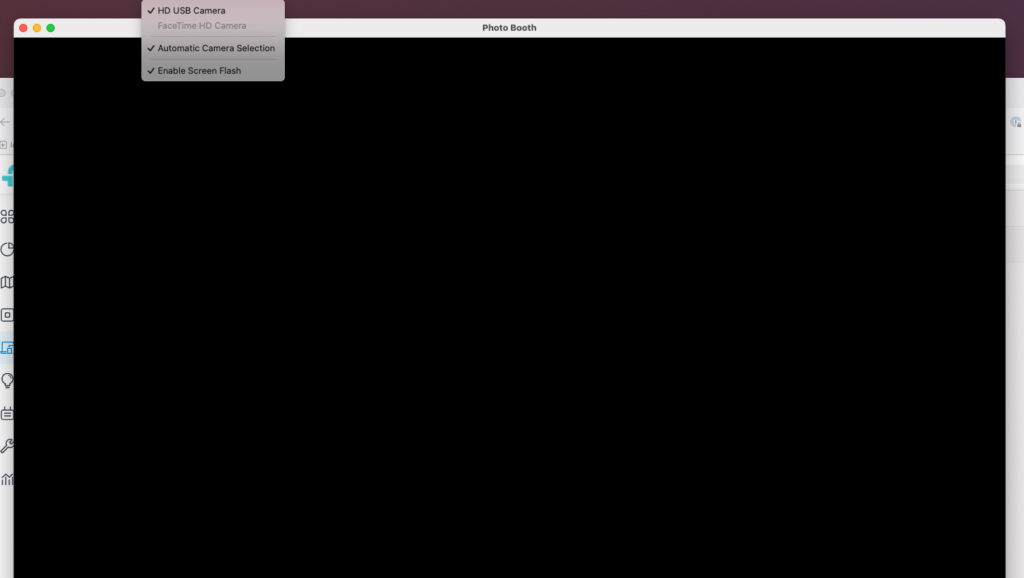
To verify that it was not a defective adaptor, I tried a USB mouse which worked.
10 meter USB-A to USB-A worked

The longest USB-A to USB-A cable I found is 10 meters. It worked without issue.
Link: https://s.lazada.com.ph/s.7ZWZQ
Price: Php 139.00
Problem: USB root hub cannot support more than 3 cameras at the same time due to bandwidth constraint
I tried plugging in 2 camera and my Mac supported running it at the same time. Both seem to have a different Unique ID.
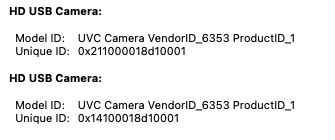
Reference: https://www.any-maze.com/support/guides/connecting-multiple-usb-cameras-to-a-computer/ As a rule of thumb, you can only connect three USB cameras to a single USB controller.
Video4Linux
Supported format includes H264, meaning no encoding needed. This might also mean that the camera will need less bandwidth because the stream is already compressed.
# v4l2-ctl -d /dev/video0 --list-formats-ext
ioctl: VIDIOC_ENUM_FMT Type: Video Capture
[0]: 'MJPG' (Motion-JPEG, compressed)
  Size: Discrete 640x360
    Interval: Discrete 0.033s (30.000 fps)
  Size: Discrete 1280x720
    Interval: Discrete 0.033s (30.000 fps)
  Size: Discrete 1920x1080
    Interval: Discrete 0.033s (30.000 fps)
[1]: 'YUYV' (YUYV 4:2:2)
  Size: Discrete 640x360
    Interval: Discrete 0.033s (30.000 fps)
  Size: Discrete 1280x720
    Interval: Discrete 0.200s (5.000 fps)
  Size: Discrete 1920x1080
    Interval: Discrete 0.200s (5.000 fps)
[2]: 'H264' (H.264, compressed)
  Size: Discrete 640x360
    Interval: Discrete 0.033s (30.000 fps)
  Size: Discrete 1280x720
    Interval: Discrete 0.033s (30.000 fps)
  Size: Discrete 1920x1080
    Interval: Discrete 0.033s (30.000 fps)
Useful link on debugging UVC on Linux: https://gist.github.com/lucasw/85dc92c9f5146e9d5175a33b49ef4a90
USB Direct
This method makes the camera show up as a network device. Processing will still be in camera. It can be configured like connected to a network.
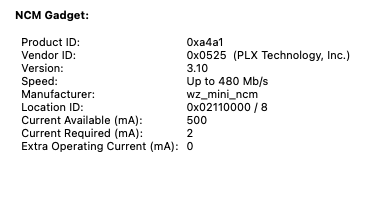
I have not tried this yet though as I could not wrap my head around the network settings needed.
Link: https://github.com/gtxaspec/wz_mini_hacks/blob/master/documentation/usb-direct.md
USB to Ethernet Adaptor
I have not tried this yet but it requires a USB to Ethernet Adaptor and a separate way to power up the device.
Firmwares
wz_mini_hacks
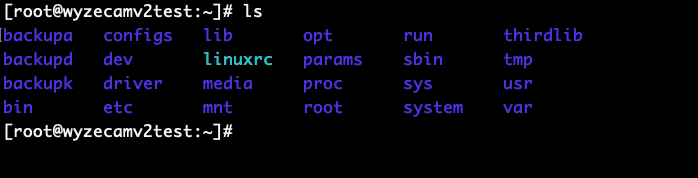
Root access

Building firmware for v2

Firmware for Wyze Cam v2 is not made available for download. There’s a script that unpacks the firmware and replace the kernel, then repacks it.
The automated part to download the firmware is not working anymore because Wyze
removed older firmwares. It only supports v2 4.9.8.1002 and
pan v1 4.10.8.1002. It could theoretically support other version if the
offset where to write the modified kernel is set. I did not dig deeper how to do
this.
openmiko
Implements it’s own code to expose Ingenic T20 video streams. Supports 1080p by default. Only works with Wyze Cam v2.
Link: https://github.com/openmiko/openmiko
Xiaom-Dafang-Hacks
Compatible with both Wyze Cam v2 and Xiaomi Xiaofang 1S.
Link: https://github.com/EliasKotlyar/Xiaomi-Dafang-Hacks
docker-wyze-bridge
Not really a firmware but a bridge to expose native Wyze streams as RTSP.
Not reliable.
Link: https://github.com/mrlt8/docker-wyze-bridge
Firmware mix-and-match
Since both cameras are the same hardware-wise, I tried mix and matching:
| Firmware | Wyze Cam v2 | Xiaomi Xiaofang 1S |
|---|---|---|
| Wyze Webcam Firmware | Yes | Yes |
| OpenMiko | Yes | No |
| Xiaomi-Dafang-Hacks | Yes | Yes |
| wz_mini_hacks | Yes | No |
| Official Wyze Firmware | Yes | No |
Hardware Mods
Since I have a lot of these cameras, something will inevitably fail.
Interchangeable Camera Module
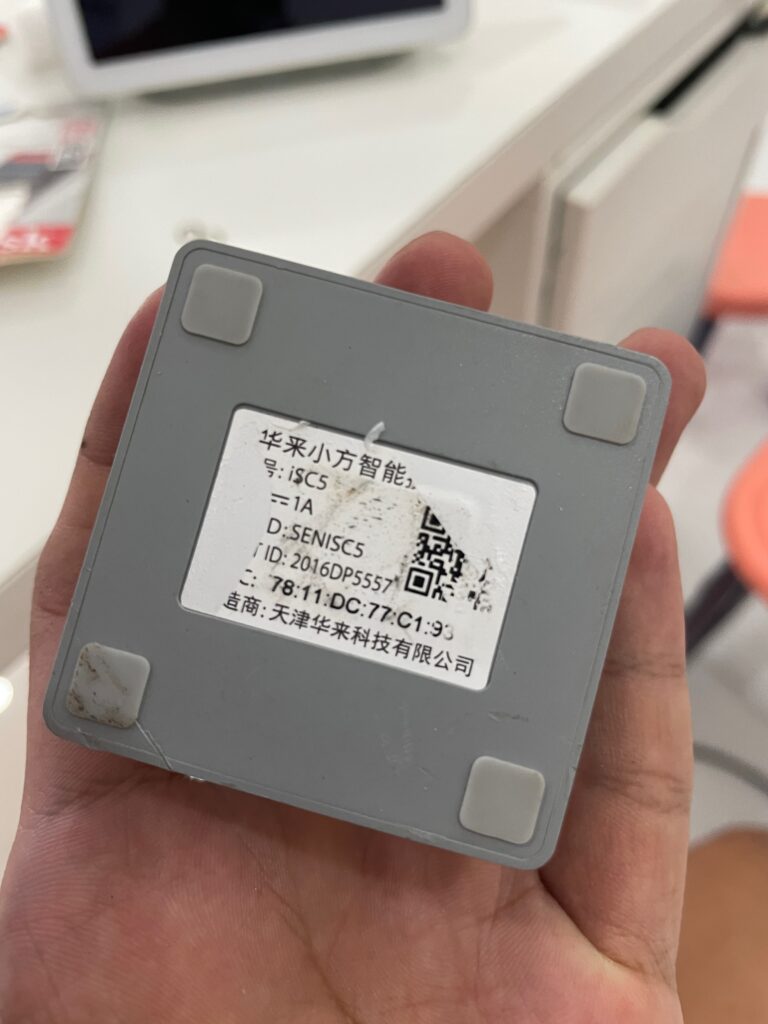
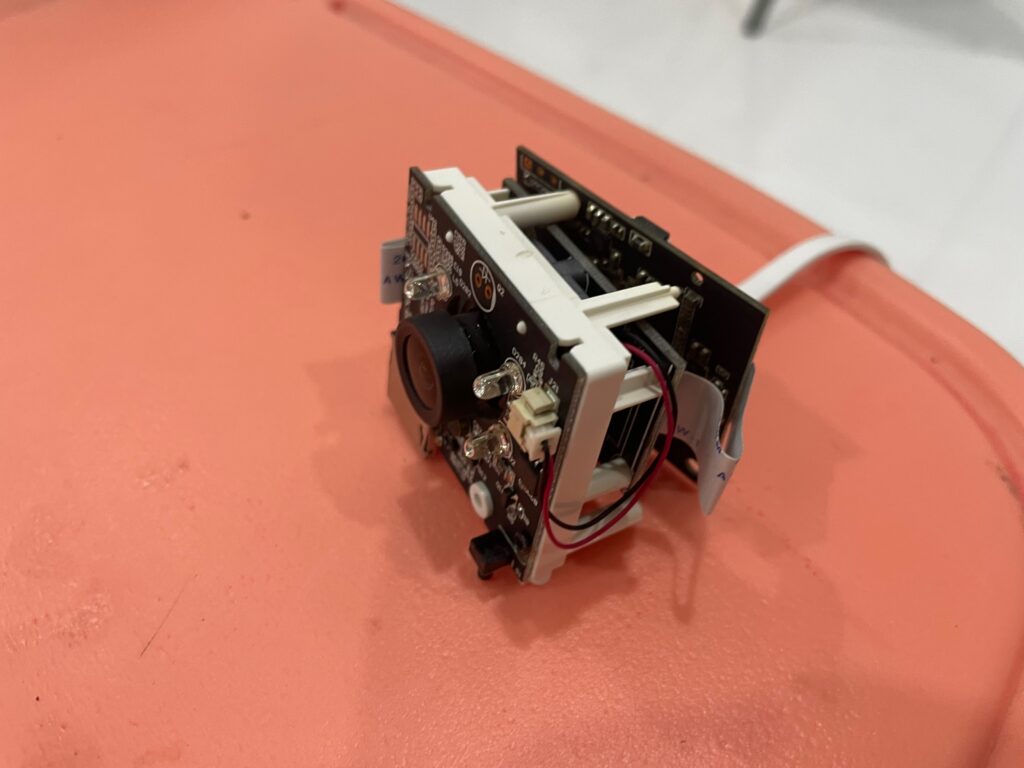
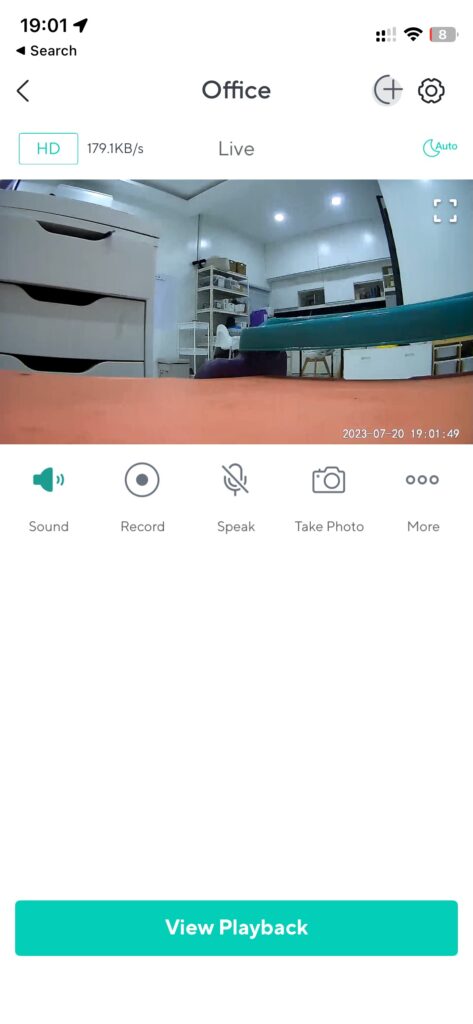
I have a Wyze cam v2 that has a blurry sensor. I tried replacing the whole camera module from a Xiaomi Xiaofang 1S. It worked.

Useful links
https://leo.leung.xyz/wiki/Wyze_Cam
Related: USB to Ethernet Adaptors: Chipset Notes for macOS and Proxmox and Enterprise-grade CCTV on a Consumer-grade Hardware.