Practical Homelab / Self-hosted Services

FauxPilot: Self-hosted GitHub Copilot

August 24, 2023/Self-hosted Services/#self-hosted

I’ve been trialing GitHub Copilot for a couple of weeks now. I can say that it’s well worth it especially when writing code from a blank slate. It outputs code blocks that help my brain process more quickly.

Its output rarely works as-is, but it only needs minimal tweaking.

It’s another subscription though, and I try to limit my monthly expenses to a minimum. It’s a nice-to-have, but not a necessary-to-have with the amount of coding I do at the moment.

When I was migrating my old server, I saw in the Vultr Marketplace FauxPilot. It turned out it’s an open-source alternative to GitHub Copilot server using Salesforce CodeGen.

I just had to try it.

Requirements

The only physical requirement is an Nvidia GPU with CUDA support (I have a Tesla P4 ✅).

The rest are just software to install:

Server Installation

I use Ubuntu 20.04 as my base OS. From a fresh install, here’s what I needed to do to run FauxPilot.

  1. Install Docker
curl https://get.docker.com | sh \
  && sudo systemctl --now enable docker
  1. Install Nvidia Container Toolkit
distribution=$(. /etc/os-release;echo $ID$VERSION_ID) \
  && curl -fsSL https://nvidia.github.io/libnvidia-container/gpgkey \
  | sudo gpg --dearmor -o /usr/share/keyrings/nvidia-container-toolkit-keyring.gpg \
  && curl -s -L https://nvidia.github.io/libnvidia-container/$distribution/libnvidia-container.list \
  | sed 's#deb https://#deb [signed-by=/usr/share/keyrings/nvidia-container-toolkit-keyring.gpg] https://#g' \
  | sudo tee /etc/apt/sources.list.d/nvidia-container-toolkit.list

sudo apt-get update
sudo apt-get install -y nvidia-container-toolkit
sudo nvidia-ctk runtime configure --runtime=docker
sudo systemctl restart docker
  1. Install Nvidia CUDA drivers
wget https://developer.download.nvidia.com/compute/cuda/repos/ubuntu2004/x86_64/cuda-keyring_1.1-1_all.deb
sudo dpkg -i cuda-keyring_1.1-1_all.deb
sudo apt-get update
sudo apt-get -y install --no-install-recommends cuda
sudo apt-get -y install nvidia-driver-535

Make sure the drivers are properly installed by running nvidia-smi.

  1. Clone FauxPilot repo
git clone https://github.com/fauxpilot/fauxpilot.git
cd fauxpilot
  1. Run FauxPilot setup
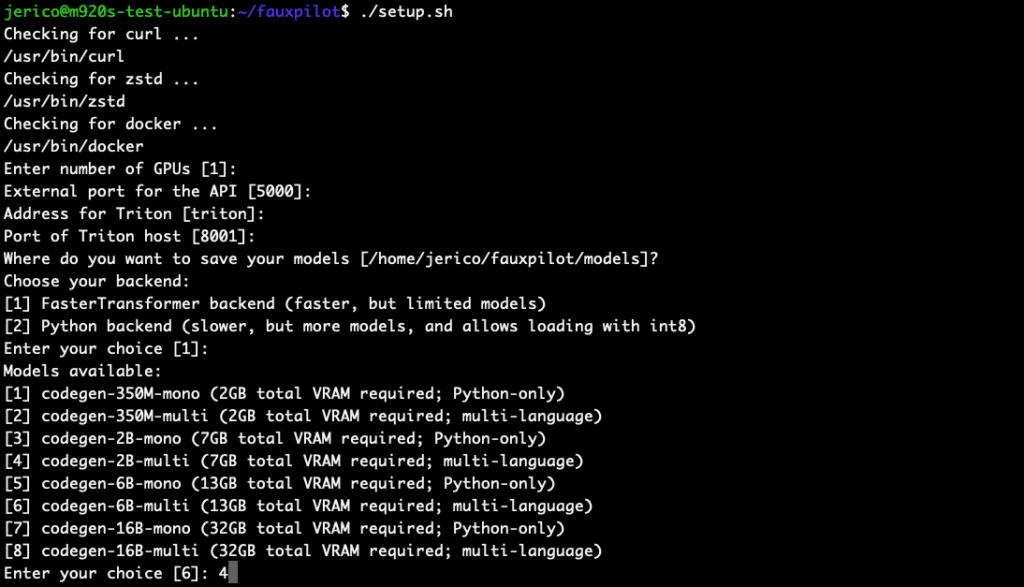
sudo bash ./setup.sh

I chose codegen-2B-multi because my GPU only has 8GB VRAM, and I’m coding in PHP. Higher parameter models require more VRAM and RAM.

  1. Launch FauxPilot
sudo bash ./launch.sh

Demo video: /media/homelab/2023/08/Screen-Recording-2023-08-24-at-22.00.05.mov

Test if the server is working:

curl -s -H "Accept: application/json" \
  -H "Content-type: application/json" \
  -X POST \
  -d '{"prompt":"def hello","max_tokens":100,"temperature":0.1,"stop":["\n\n"]}' \
  http://localhost:5000/v1/engines/codegen/completions | jq

Response should be:

{
  "id": "cmpl-OCButmOAbNedOMOxjPc0v9skuLdk7",
  "model": "codegen",
  "object": "text_completion",
  "created": 1692885668,
  "choices": [
    {
      "text": "(self):\n return \"Hello World!\"",
      "index": 0,
      "finish_reason": "stop",
      "logprobs": null
    }
  ],
  "usage": {
    "completion_tokens": 11,
    "prompt_tokens": 2,
    "total_tokens": 13
  }
}

Client Setup

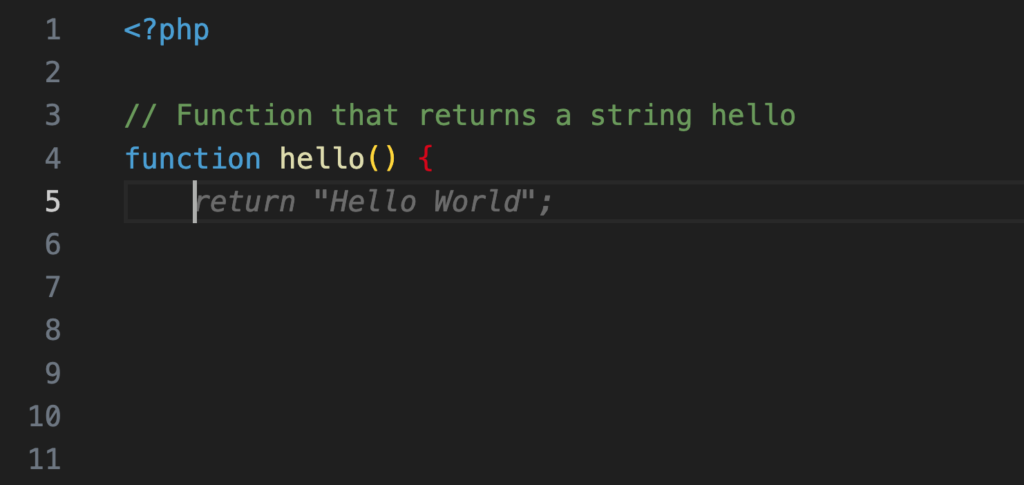
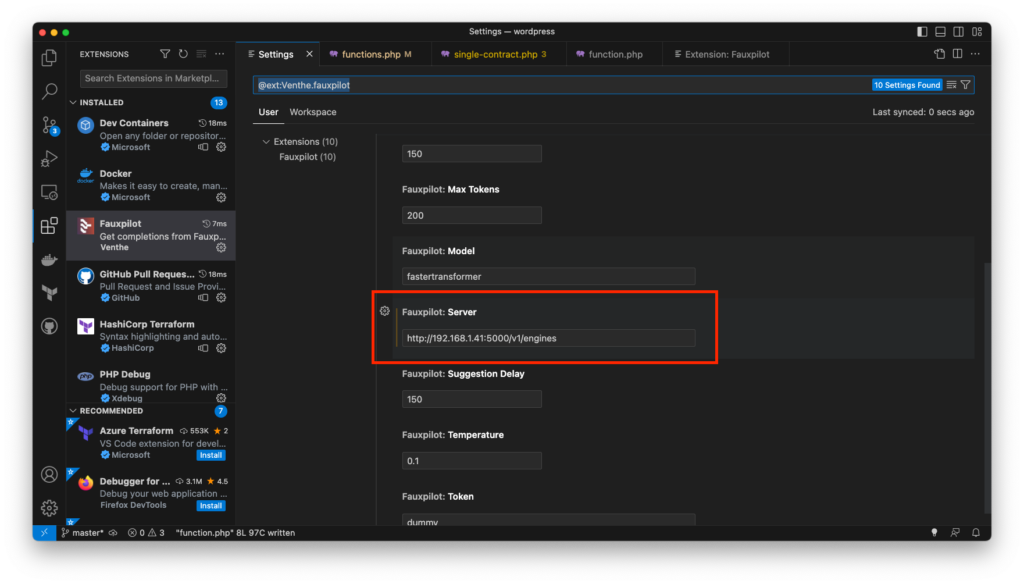
Now that I have a working server, I need to setup my client. There’s a VSCode extension called FauxPilot. The only configuration change needed is pointing to the server address. After that, it works right away.

Demo video:

The suggestions quality is very far from GitHub Copilot. But at least it works!

There are a lot of factors why it’s underperforming. Maybe it’s the model itself, or the size of the model I chose, limited context, difference in training data.

Regardless of the quality, it’s exciting that it can be ran locally with old techs.

Switching from cPanel to Cyber Panel

August 12, 2023/Self-hosted Services/#hosting

Back in the day when I was regularly doing freelance website projects, I offer hosting it too. It was a good idea to setup my own and I did. cPanel fits the bill. It has a fixed monthly subscription, easy to use, and I can upgrade my server as I grow.

After a couple of years, it has switched to per user pricing. On top of it, I don’t work on freelance projects anymore. I’ve been paying $87.99/month out-of-pocket to maintain the server. It currently hosts 8 websites, which are all low-traffic and do not need the current capacity of the server.

Downgrading server and switching off cPanel

Downgrading and switching off has been on my list ever since cPanel started charging per user.

When I try to search for free alternatives, I get choice paralysis. At this point though, I’m seeing other good things I could spend the monthly cost of the server.

I can use the minimum server instance size + a cPanel alternative.

For the alternative, I was looking specifically at:

  • No monthly additional cost (biggest gripe with cPanel)
  • Ease of setup
  • Ease of migration

I checked VirtualMin, Webmin, VestaCP, Cyber Panel. All satisfy the first 2 criteria. When I saw that Cyber Panel supports importing cPanel account, I went ahead and spun up an instance to try it.

Cyber Panel is available in Vultr Marketplace Apps, no installation process was needed.

Data migration

In cPanel, go to Backups and click Download a full account backup. If you choose to save in the home directory, a file will be available at: /home/cpanelusername/backup-8.27.2020_08-58-02_cpanelusername.tar.gz

wget <backup_url>

To make it easier for me, I moved the file to public_html and download it in the new server.

/usr/local/CyberCP/bin/python /usr/local/CyberCP/plogical/cPanelImporter.py --path /root/cpanel_backups/

This command will import all backup files inside the cpanel_backups folder.

I tried it on one account. Update the DNS record to point to the new server, and surprisingly it worked right away.

The WordPress database was imported as well. For the subsites (additional domains), I had to explicitly set the PHP version and it worked as-is.

With a pleasant experience, I got hooked to do it for the rest of the accounts.

Nameserver

My cPanel installation also serves as the nameserver for some of the domains I host. Which is a good thing because I did not have to contact each person to update their domain.

Good thing, Cyber Panel comes with its own DNS server too. The zone file are imported with an updated server IP address.

Once everything has been migrated, I only needed to update the DNS of the nameservers to point to the new Cyber Panel instance.

Shutting down the server

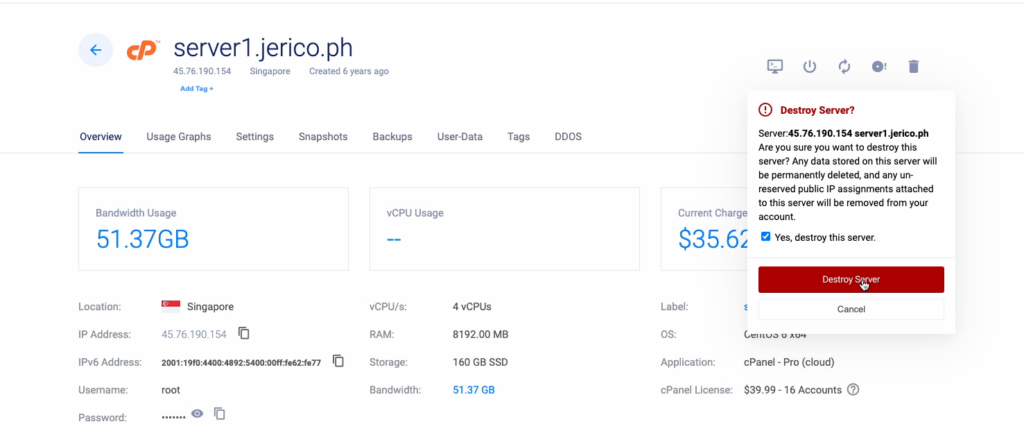
I turned off the server to make sure everything is still working. After a couple of hours, I decided it was time to destroy it to save cost. From $87.99, my monthly bill for the new server is $12.00. Around 86% cost reduction.

Thank you for the 6 years, server1.jerico.ph.

Synology Jellyfin docker-compose

August 7, 2023/Self-hosted Services/#media
version: '3.5'
services:
  jellyfin:
    image: jellyfin/jellyfin
    container_name: jellyfin
    user: 1026:100
    group_add:
      - "937"
    network_mode: 'host'
    volumes:
      - /volume2/docker/jellyfin/config:/config
      - /volume2/docker/jellyfin/cache:/cache
      - /volume2/Media/:/media
    restart: 'unless-stopped'
    devices:
      - /dev/dri/renderD128:/dev/dri/renderD128
    # Optional - may be necessary for docker healthcheck to pass if running in host network mode
    extra_hosts:
      - "host.docker.internal:host-gateway"

To get group id of renderD128 device:

cat /etc/group | grep videodriver | cut -d: -f3

This will allow hardware accelerated encoding.

Installing Mumble Server

July 30, 2023/Self-hosted Services/#self-hosted

I’ve been wanting a solution to have conversation

Self-hosting Your WordPress Site at Home

February 11, 2023/Self-hosted Services/#wordpress
  1. Install Docker.
  2. Create a folder.
  3. Create a plain text file named docker-compose.yml.
  4. Copy the code below.
  5. Run docker-compose up.
services:
  wordpress:
    image: wordpress:6.1.1-apache
    environment:
      WORDPRESS_DB_HOST: db
      WORDPRESS_DB_USER: wordpress
      WORDPRESS_DB_PASSWORD: password
      WORDPRESS_DB_NAME: wordpress
    volumes:
      - ./wordpress:/var/www/html
  db:
    image: mysql:5.7
    platform: linux/x86_64
    environment:
      MYSQL_DATABASE: wordpress
      MYSQL_USER: wordpress
      MYSQL_PASSWORD: password
      MYSQL_RANDOM_ROOT_PASSWORD: "1"
    volumes:
      - ./db:/var/lib/mysql
  tunnel:
    image: cloudflare/cloudflared
    restart: unless-stopped
    command: tunnel --url wordpress:80
    depends_on:
      - wordpress
      - db

Audiobookshelf

January 21, 2023/Self-hosted Services/#self-hosted

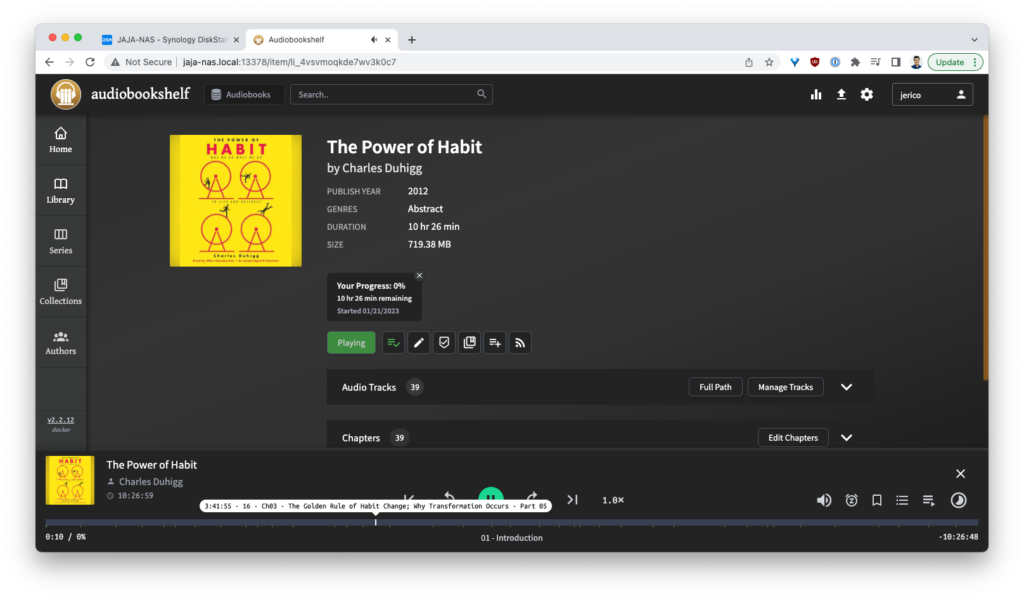
Wow. This app mindblowingingly easy to install and use.

This is for managing and consuming audiobooks. I actually gave up trying to manage my own audiobooks and subscribed to Audible instead. The issue is I only have phases on when I listen to audiobooks. It only recently started when I started driving everyday again to pickup my kids from school.

The issue I have with Audible is it’s a subscription. And I don’t really own books I purchased there. It’s only rented until they close down.

With that concern, I’ve attempted to download copies of my books. But managing it as a flat file is hard. I have a folder “Audiobooks” where my audiobooks are left to be ignored.

Ang hirap kasi i-navigate. Opening it with the Music app, it will import the whole thing. Without context too, walang chapters, walang metadata.

This app solves all those. Grabe. The interface is super delightful to use to. As soon as I upload 1 book, I started listening. That’s it.

Wow.

FreshRSS

January 21, 2023/Self-hosted Services/#self-hosted

Bigla kong na-miss yung Google Reader. I used to subscribe to blogs. Madami pa ring blogs ngayon but it’s hard to keep track unless may aggregator.

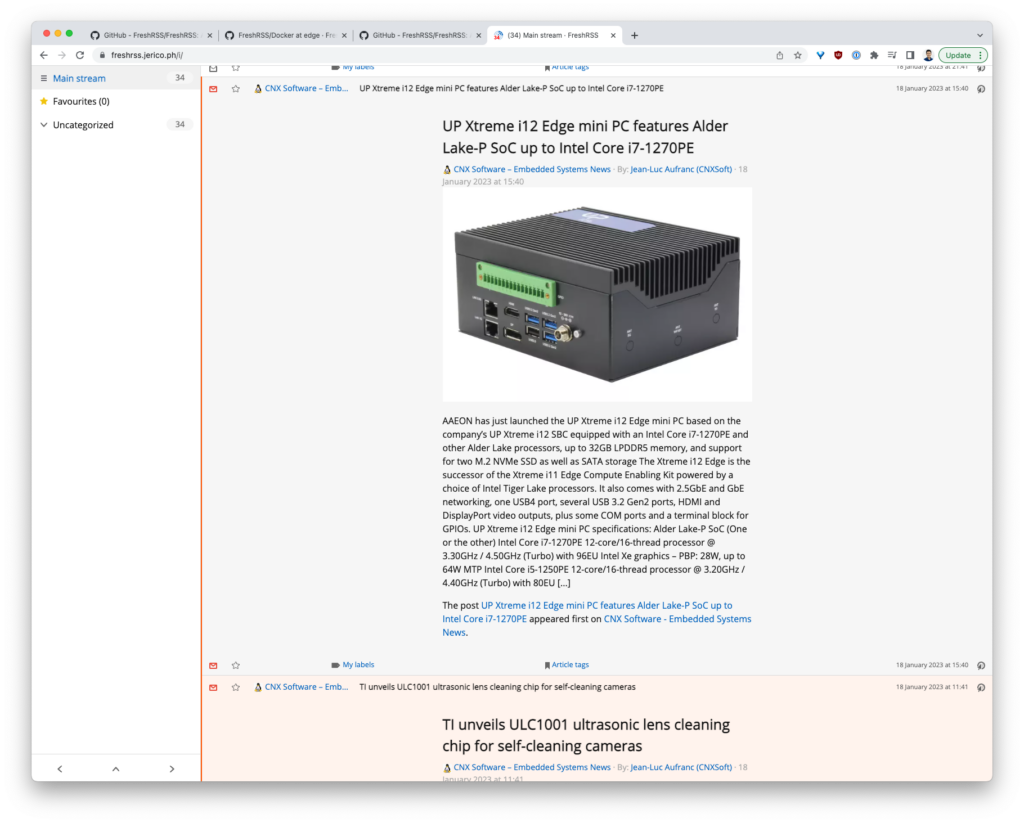
I started looking for self-hosted solution na may similar user experience with Google Reader. Yung naka-open na yung articles but scroll to read lang. FreshRSS fits the bill.

I’ve been meaning to set it up kasi may Docker package naman. I thought it will only take less than 30 minutes pero it’s 1.5 hours bago ko napaganda. It’s mix of where my containers are hosted, yung provided nilang default config na hindi gumagana out-of-the-box, and small changes sa config na I would not thought will break my initial installation.

But now it works:

Here’s to more curated way to consume content from the web!

ArchiveBox

January 16, 2023/Self-hosted Services/#self-hosted

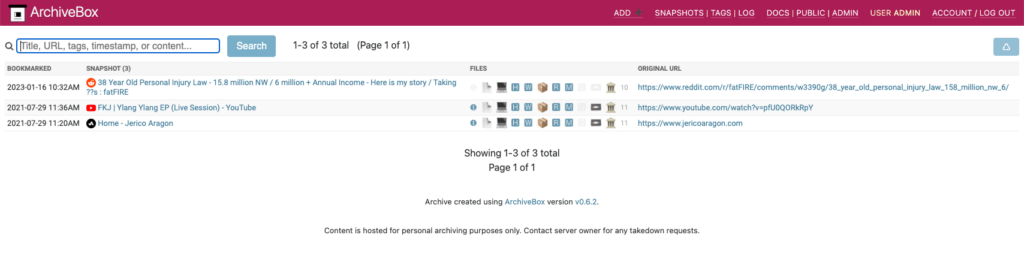
Spent an hour of my morning setting up ArchiveBox. I’ve set this up before but I forgot how to access it. It wasn’t even running.

I saw that there was a docker-compose.yml already and I went to update Docker Compose in my Synology NAS and ran docker-composer up -d and it worked as it was before:

Why?

I blocked Reddit and other news site to my main computer to prevent me to rabbit-hole on unintended topics. I wanted some sort of deterrent when I impulsively type or visit a Reddit link.

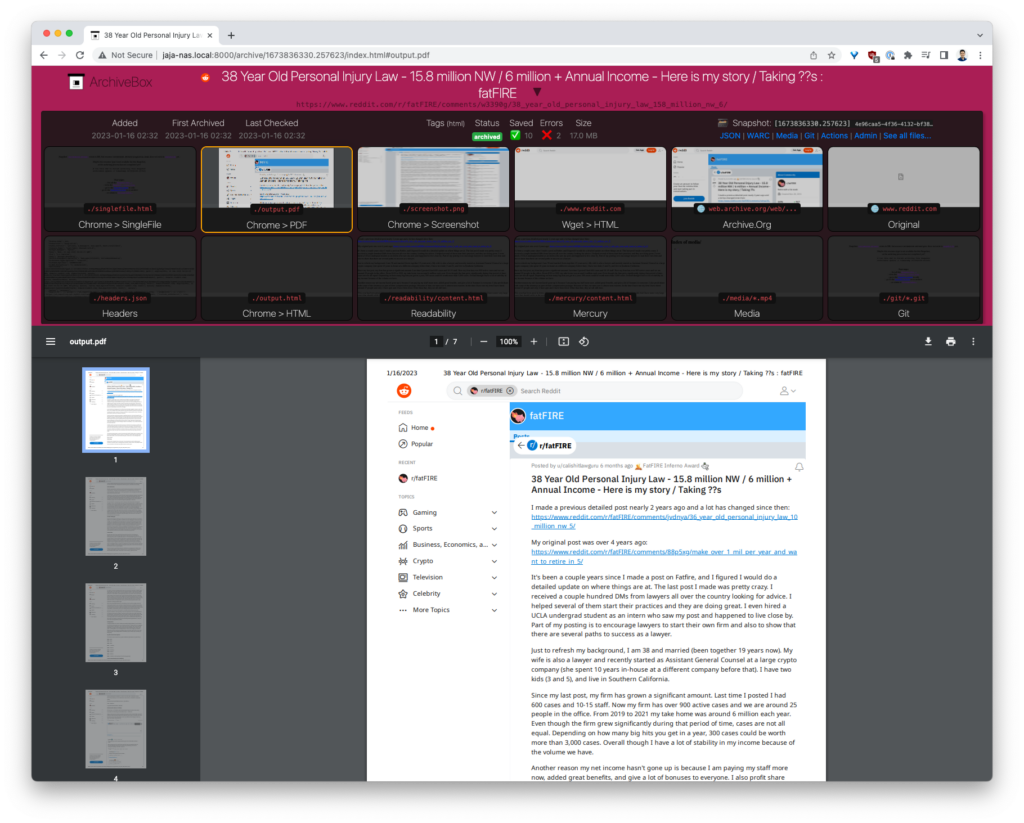
I was watching a podcast and they linked to an interesting Reddit post about someone posting their net worth, growth, and plans. I did not want to unblock Reddit “temporarily”. I remembered this is a good use-case of ArchiveBox. I’ll archive the Reddit link and I’ll have access only to the archived page.

It worked:

Switching to WordPress Multisite

January 2, 2023/Self-hosted Services/#wordpress

One of the reasons why I don’t publish regularly is I pre-judge what I write if it’s publish-worthy.

At Human Made, we use a WordPress Multisite. Each area/interest of the organization has it’s own site. This fits nicely with my internal structure. I have multiple interest with varying degrees, and only work on those interests only when I feel like working on it.

What I did is convert this personal site to a multisite too and started creating sites for topics I’ve been putting my energy on. This removes the hesitation if it’s worth posting since it will be in it’s own little space. I can be as technical as I need to be. The audience is my future self, and probably my kids if they also happen to stumble on the same interest.

One topic I’ve been spending a lot of time on recently is FTTH. Here’s an example post of installing NAP box for my ODM: https://www.jericoaragon.com/fiber/2022/12/20/installing-my-first-nap-and-two-clients/

My plan is to document my progress using posts and compile elaborate knowledge base using pages.

I built Julie a Contract Maker

March 27, 2018/Self-hosted Services/#software

https://www.youtube.com/watch?v=j_ksJJ1eVmc

Every time Julie create contracts for her clients, she always complains. It’s one of the things she isn’t looking forward to do in her business. She have this Adobe Illustrator file she manually edits for every client. Even computation itself is manual work. Her process looks like:

  1. Look for her laptop
  2. Look for laptop’s charger because it’s been a few days before she last used it 😄
  3. Open her Adobe Illustrator file
  4. Dig in client details. Is it in Facebook Messenger, Viber, email?
  5. Add client details
  6. Add payment terms
  7. Save to Dropbox
  8. Send to client for signing

All this takes her around 10-15 minutes per contract. At the end of it sumasakit daw ulo niya. At one point I told her I make her a “contract maker” for her phone. She will only have to put in client details, then it will produce a PDF based on her AI template. This video is our initial MVP (minimum viable product). This removed half the steps of her current process. This also removed the need to have her laptop around to create contracts. Less friction to do as soon as her clients paid the down payment, with all the wedding details still fresh from their conversation. Computation and breakdown of payment terms are done automatically. She tried it on an actual client who followed up her contract. It took her less than 5 minutes to do. Most of all, she doesn’t get headache doing it anymore. 🙂

Making a Personal Dashboard

February 18, 2018/Self-hosted Services/#dashboard

I have been out of track for a while now. Julie is starting to get worried that I’m getting a little too present-oriented (YOLO lyf). I think the problem starts when I stop checking in life metrics that directly correlate to my “sharpness”. Having no idea of how am I doing makes me care less of my performance. Resistance to know grows because I might not like what I find. Somebody said that if you can’t track it, you can’t improve it.

What do I need to track?

I have 2 key performance indicators (KPI) that are correlated with my work capacity and ability to plan about the future:

  1. Screen Time - How much time I spend using a computer. This is tracked by running RescueTime in the background of my computer all the time.
  2. Intentional Work Time - How much time I spend intentionally working on something. “Intention” is the keyword. Regardless of how much time I spend on a task, the important thing is if I am aiming at a clear end goal. Opposite of this is jumping from one distraction to the next without accomplishing anything concrete. This is tracked by Toggl.

Normally, I should have more or less 40 hours of screen time per week and around 20 hours of intentional work time. If I dip below 40 hours of screen time, it usually means I’m trying to avoid working by doing something else. When I’m at my sharpest, I am more self-aware, this makes most of what I do to have clear intentions before I do them. The closer intentional work time to screen time, the better.

Out of sight, out of mind. The opposite is true too.

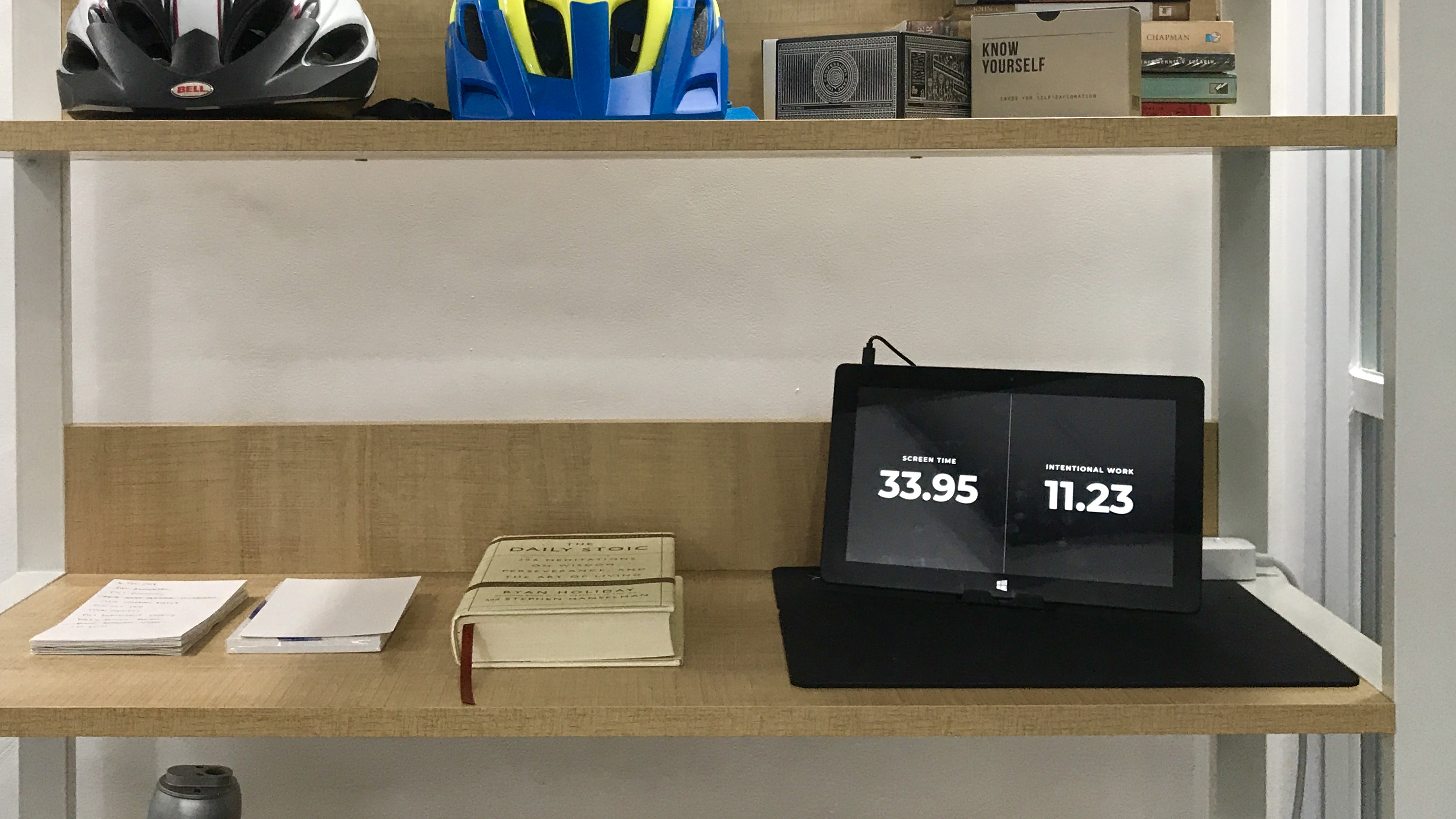
I need those 2 KPIs to be always in my sight. This will give me a general grasp of how I’m doing based on a concrete data. I can do my “getting back on track” checklist if I’m doing poorly. I have the skillset to quickly whip up a simple dashboard that displays those data. I also have a spare tablet that I’m not using. I can use it to display my KPIs on 24/7 with very little power consumption (5V/1A).

Getting my hands dirty

  1. Preps - I did not bother using any framework. It doesn’t matter how dirty the setup and the coding is since it’s personal use only. The goal is to display the correct data. Originally I planned to use curl to fetch the data but it looks like using API wrappers will be much faster and future-proof. I always went to the fastest solution because I want to have a working dashboard in one sitting. I started 2 files: index.php for gluing all the parts and composer.json for dependency management.
  2. Getting RescueTime data - For RescueTime, I used borivojevic/rescuetime.
$rescuetime_key = "RESCUE_TIME_API_KEY";

use RescueTime\RequestQueryParameters as Params;
use RescueTime\Client;

$client = new Client($rescuetime_key);
$day = date('w');
$week_start = date('Y-m-d', strtotime('-'.$day.' days'));
$week_end = date('Y-m-d', strtotime('+'.(6-$day).' days'));

// Fetch activities for this week
$activities = $client->getActivities(
  new Params([
    'perspective' => 'interval',
    'resolution_time' => 'week',
    'restrict_begin' => new \DateTime($week_start),
    'restrict_end' => new \DateTime($week_end)
  ])
);

// Compute total time spent
$totalTimeSpent = 0;
foreach ($activities as $a) {
  $totalTimeSpent += $a->getTimeSpentSeconds();
}

$totalScreenTimeThisWeek = number_format(round($totalTimeSpent/60/60, 2), 2);
  1. Getting Toggl data - For Toggl, I used ixudra/toggl.
$workspaceId = 0;
$apiToken = 'TOGGL_API_KEY';

$togglService = new \Ixudra\Toggl\TogglService($workspaceId, $apiToken);
$response = $togglService->summaryThisWeek();
$totalIntentionalWorkThisWeek = number_format(
  round($response->total_grand/1000/60/60, 2),
  2
);
  1. Displaying computed data to the page
<div>
  <p>Screen Time</p>
  <h1><?php echo $totalScreenTimeThisWeek; ?></h1>
</div>
<div>
  <p>Intentional Work</p>
  <h1><?php echo $totalIntentionalWorkThisWeek; ?></h1>
</div>
  1. Keeping the data up-to-date
<meta http-equiv="refresh" content="600">

Putting everything together

I ended up having a working dashboard in around 1.5h of intentional work. After the coding is done, I uploaded it to my server and loaded it in the tablet.

It sits on a shelf where I can see it everyday (together with The Daily Stoic, which I read 1 page everyday).

This sets a framework that I can update as needed if ever I need a new KPI to track. The process of adding a new data source will be just 1) figuring out how to get the data 2) displaying it. The boilerplate is done. The friction to update will be minimal. If you are interested in this project, have a KPI to recommend, or just want to talk in general — feel free to reach out!

Enable backup using Amazon S3 in WHM

June 6, 2017/Self-hosted Services/#backup

Backup to Amazon S3 using WHM is natively supported. However, I ran into trouble that the AWS keys I setup isn’t working. It turns out that my bucket has to have no period in its name otherwise it will fail because of an SSL error. To configure automatic backup from WHM to Amazon S3:

Create an S3 bucket and get AWS credentials
  1. Go to AWS S3 Console
  2. Create a new bucket - make sure the bucket name has no period in its name
  3. Click your account name on the top right to show a dropdown menu
  4. Select My Security Credentials
  5. Click Access Keys
  6. Click Create New Access Key
  7. Keep this window open because we need to get the keys later
Setting up Amazon S3 as a new backup destination
  1. Login in WHM admin page
  2. Click Backup Configuration in the sidebar
  3. In Additional Destinations, select Amazon S3
  4. Click Create new destination
  5. Fill-in destination name - the name you want for this destination e.g. Jerico’s S3
  6. Fill-in the bucket name you created earlier
  7. Paste Access Key ID and Secret Access Key from AWS S3 Console
  8. Set Timeout to 300
  9. Click Save and Validate Destination

If everything goes well, you now have an S3 destination for your backups. You can start configuring how and when you want your backups to run. To start the backup, you need to SSH in to your server and run /usr/local/cpanel/bin/backup