One of my DSM virtual instances had a crashed volume. A crashed volume doesn’t
necessarily mean lost data. It crashed for some reason and DSM suggests you to
copy your data elsewhere before it becomes worse.
However, my instance is a virtual machine using a network block storage device
that has its own protection built-in. My hunch is it crashed because of a
network failure and DSM marked it as crashed.
Here’s the process how to fix a crashed volume
Connect to the DSM instance either via SSH or Console (serial).
I use Proxmox and have the option to connect using my virtual serial port.
qm term <VMID>
Once connected, stop all NAS services except for SSH.
sudo syno_poweroff_task -d
Get the raid array information. Look for array that have [E] which means it
has an error. Take note of the devices name (e.g. md2 and sdg3).
cat /proc/mdstatPersonalities : [linear] [raid0] [raid1] [raid10] [raid6] [raid5] [raid4] [raidF1]md2 : active raid1 sdg3[0](E) 532048896 blocks super 1.2 [1/1] [E]md1 : active raid1 sdg2[0] 2097088 blocks [16/1] [U_______________]md0 : active raid1 sdg1[0] 2490176 blocks [16/1] [U_______________]
To retain the same raid array UUID when it will be recreated later on, we need
to get that info. Take note of UUID and Array UUID which should match.
sudo mdadm --detail /dev/md2/dev/md2: Version : 1.2 Creation Time : Tue Apr 5 11:13:15 2022 Raid Level : raid1 Array Size : 532048896 (507.40 GiB 544.82 GB) Used Dev Size : 532048896 (507.40 GiB 544.82 GB) Raid Devices : 1 Total Devices : 1 Persistence : Superblock is persistent Update Time : Tue Jan 3 15:17:40 2023 State : clean, FAILED Active Devices : 1Working Devices : 1 Failed Devices : 0 Spare Devices : 0 Name : JAJA-NVR:2 (local to host JAJA-NVR) UUID : 4c38a5c6:7d2b9e1e:76678f10:b7f5e176 Events : 28 Number Major Minor RaidDevice State 0 8 99 0 faulty active sync /dev/sdg3sudo mdadm --examine /dev/sdg3/dev/sdg3: Magic : a92b4efc Version : 1.2 Feature Map : 0x0 Array UUID : 4c38a5c6:7d2b9e1e:76678f10:b7f5e176 Name : JAJA-NVR:2 (local to host JAJA-NVR) Creation Time : Tue Apr 5 11:13:15 2022 Raid Level : raid1 Raid Devices : 1 Avail Dev Size : 1064097792 (507.40 GiB 544.82 GB) Array Size : 532048896 (507.40 GiB 544.82 GB) Data Offset : 2048 sectors Super Offset : 8 sectors Unused Space : before=1968 sectors, after=0 sectors State : clean Device UUID : 40be52e1:68f734ef:980cfaa5:103c5fa6 Update Time : Tue Jan 3 15:17:40 2023 Checksum : afa92c2 - correct Events : 28 Device Role : Active device 0 Array State : A ('A' == active, '.' == missing, 'R' == replacing)
Stop the raid array:
sudo mdadm --stop /dev/md2[499024.611228] md2: detected capacity change from 544818069504 to 0[499024.612272] md: md2: set sdg3 to auto_remap [0][499024.613155] md: md2 stopped.[499024.613792] md: unbind<sdg3>[499024.618114] md: export_rdev(sdg3)mdadm: stopped /dev/md2
Recreate the raid array:
sudo mdadm --create --force /dev/md2 --level=1 --metadata=1.2 --raid-devices=1 /dev/sdg3 --uuid=4c38a5c6:7d2b9e1e:76678f10:b7f5e176mdadm: /dev/sdg3 appears to be part of a raid array: level=raid1 devices=1 ctime=Tue Jan 3 15:21:44 2023Continue creating array? y[499345.180631] md: bind<sdg3>[499345.182421] md/raid1:md2: active with 1 out of 1 mirrors[499345.185220] md2: detected capacity change from 0 to 544818069504mdadm: array /dev/md2 started.[499345.201216] md2: unknown partition table
Reboot:
sudo reboot
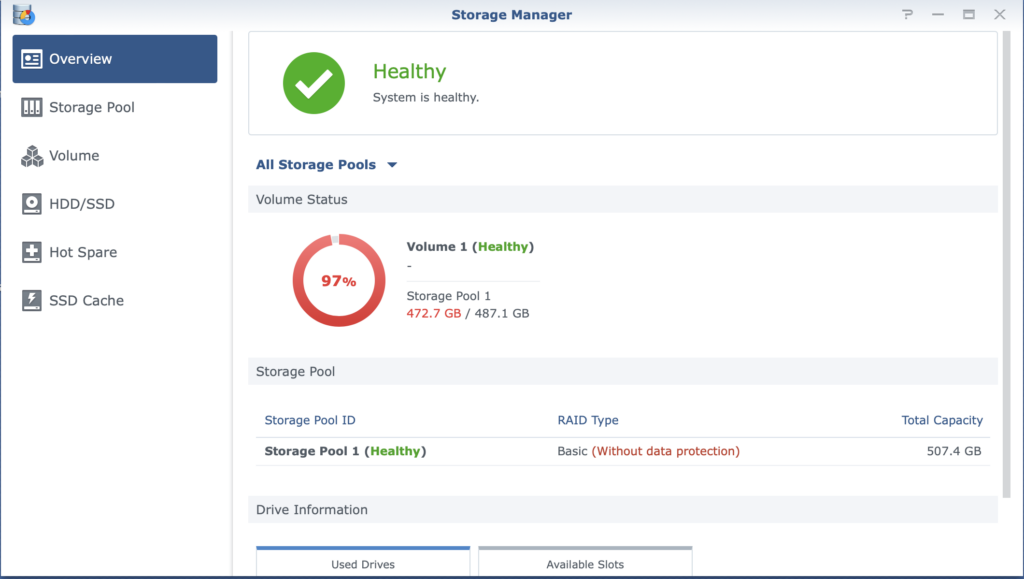
Check the DSM dashboard:
If everything went as expected, you should see the volume as healthy again.
TLDR
# Stop all NAS services except from SSHsudo syno_poweroff_task -d# Get crashed volume information (e.g. /dev/md2 and /dev/sdg3)cat /proc/mdstat# Get raid array UUID (e.g. 4c38a5c6:7d2b9e1e:76678f10:b7f5e176)sudo mdadm --detail /dev/md2# Stop raid arraysudo mdadm --stop /dev/md2# Re-add volume to the raid arraysudo mdadm --create --force /dev/md2 --level=1 --metadata=1.2 --raid-devices=1 /dev/sdg3 --uuid=4c38a5c6:7d2b9e1e:76678f10:b7f5e176# Verify it's added without errorcat /proc/mdstat# Rebootsudo reboot