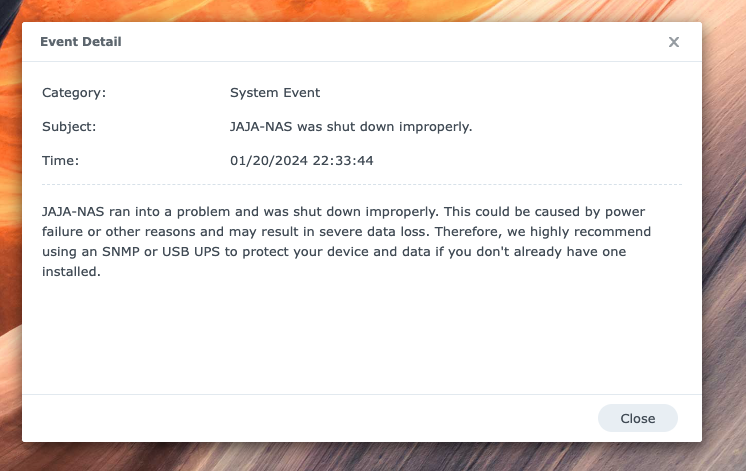
I was restarting a Docker container in my NAS’ DiskStation and I suddenly got a warning that my primary volume is mounted in read-only mode.
Checking dmesg, I saw an error about a corrupted leaf. At this point, I didn’t really know how Btrfs works, or what a leaf is.
[ 363.524916] BTRFS critical (device dm-1): [cannot fix] corrupt leaf: root=1461 block=8947565723648 slot=1, bad key order
[ 363.526807] md3: [Self Heal] Retry sector [229802368] round [1/2] start: sh-sector [76600704], d-disk [3:sata3p5], p-disk [0:sata1p5], q-disk [-1: null]
[ 363.529030] md3: [Self Heal] Retry sector [229802376] round [1/2] start: sh-sector [76600712], d-disk [3:sata3p5], p-disk [0:sata1p5], q-disk [-1: null]
[ 363.529228] md3: [Self Heal] Retry sector [229802368] round [1/2] choose d-disk
[ 363.529230] md3: [Self Heal] Retry sector [229802368] round [1/2] finished: get same result, retry next round
[ 363.529232] md3: [Self Heal] Retry sector [229802368] round [2/2] start: sh-sector [76600704], d-disk [3:sata3p5], p-disk [0:sata1p5], q-disk [-1: null]
[ 363.529391] md3: [Self Heal] Retry sector [229802368] round [2/2] choose p-disk
[ 363.529394] md3: [Self Heal] Retry sector [229802368] round [2/2] finished: get same result, give up
[ 363.538846] md3: [Self Heal] Retry sector [229802384] round [1/2] start: sh-sector [76600720], d-disk [3:sata3p5], p-disk [0:sata1p5], q-disk [-1: null]
[ 363.539030] md3: [Self Heal] Retry sector [229802376] round [1/2] choose d-disk
[ 363.539032] md3: [Self Heal] Retry sector [229802376] round [1/2] finished: get same result, retry next round
[ 363.539035] md3: [Self Heal] Retry sector [229802376] round [2/2] start: sh-sector [76600712], d-disk [3:sata3p5], p-disk [0:sata1p5], q-disk [-1: null]
[ 363.539187] md3: [Self Heal] Retry sector [229802376] round [2/2] choose p-disk
[ 363.539190] md3: [Self Heal] Retry sector [229802376] round [2/2] finished: get same result, give up
[ 363.549362] md3: [Self Heal] Retry sector [229802392] round [1/2] start: sh-sector [76600728], d-disk [3:sata3p5], p-disk [0:sata1p5], q-disk [-1: null]
[ 363.549567] md3: [Self Heal] Retry sector [229802384] round [1/2] choose d-disk
[ 363.549570] md3: [Self Heal] Retry sector [229802384] round [1/2] finished: get same result, retry next round
[ 363.549572] md3: [Self Heal] Retry sector [229802384] round [2/2] start: sh-sector [76600720], d-disk [3:sata3p5], p-disk [0:sata1p5], q-disk [-1: null]
[ 363.549738] md3: [Self Heal] Retry sector [229802384] round [2/2] choose p-disk
[ 363.549741] md3: [Self Heal] Retry sector [229802384] round [2/2] finished: get same result, give up
[ 363.559460] md3: [Self Heal] Retry sector [229802392] round [1/2] choose d-disk
[ 363.560726] md3: [Self Heal] Retry sector [229802392] round [1/2] finished: get same result, retry next round
[ 363.562301] md3: [Self Heal] Retry sector [229802392] round [2/2] start: sh-sector [76600728], d-disk [3:sata3p5], p-disk [0:sata1p5], q-disk [-1: null]
[ 363.564761] md3: [Self Heal] Retry sector [229802392] round [2/2] choose p-disk
[ 363.566015] md3: [Self Heal] Retry sector [229802392] round [2/2] finished: get same result, give up
I spent two days trying to recover. Most of the advice is to salvage the files and rebuild the filesystem.
Potential cause is bitflip in memory. I recently upgraded my RAM to 16GB × 4. I did not test it and just plugged it in. After a couple of days, my filesystem got corrupted.
List btrfs devices
btrfs fi show
Unmount volume and stop services in DSM
synostgvolume --unmount /volume2
# I forgot the correct command, but it should resemble something like --unmount-with-packages
This is supposed to stop services and unmount the volume, but it was not working for me.
Trying out btrfs check --repair
I tried btrfs check --repair as a last resort. But I’m blocked by the following error. I was not able to figure out how to fix it.
couldn't open RDWR because of unsupported option features (800000000000003).
Mounting DSM volumes in Ubuntu
apt-get update
apt-get install -y mdadm lvm2  # Initiate mdadm
mdadm -AsfR                    # Assemble or activate an array, scan for MD superblocks, etc.
vgchange -ay                   # Activate volume group
cat /proc/mdstat               # List active RAID arrays
btrfs fi show                  # List btrfs devices
btrfs check /dev/mapper/vg1000-lv
Attempted to mount the volume in Ubuntu because I could not unmount it in DSM. I could not do anything aside from btrfs check because of an unknown feature error. I’m thinking DSM have custom code baked into their Btrfs bundle.

couldn't open RDWR because of unsupported option features (0x800000000000003)
ERROR: cannot open file system
Summary
I decided to back up everything and rebuild my volume. It was originally built last July 2020 and has gone through a lot of changes such as disk size increase (adding new disks). There were a lot of errors in btrfs check too.
It’s hard to continue using it with doubt if the error will not happen again.
The bad key order corruption was likely to be from memory bitflip. I’ll do a memtest on the host machine before doing anything else.
Cutting my losses by not spending more time on this issue. I learned a bit about Btrfs which is good because I will still use it. I have a better idea next time what to check.
Writing this down so I have reference in the future.
Resources